
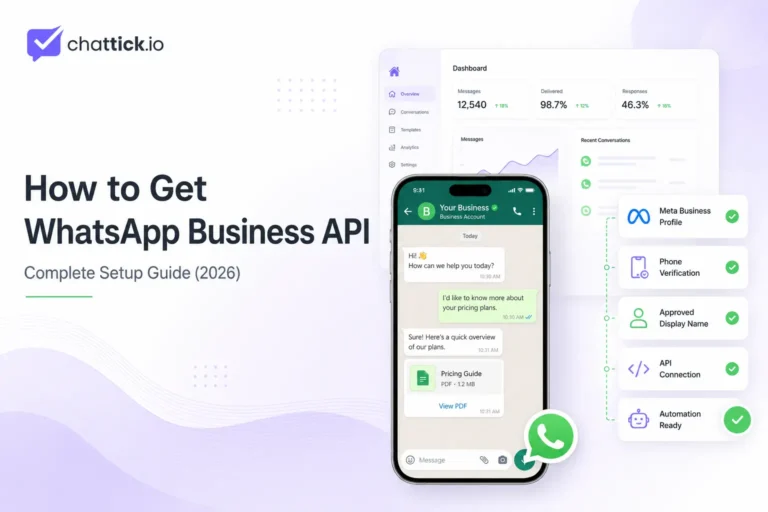
How to get WhatsApp Business API is one of the first questions businesses ask when they want to automate customer support, connect multiple agents, integrate a CRM, or manage customer conversations at scale.
Review our complete WhatsApp Business API pricing guide to understand Meta message charges, platform subscriptions, automation costs, and provider fees.
The setup can initially appear technical. However, businesses generally have two options: connect directly through Meta’s WhatsApp Cloud API or use a WhatsApp platform that provides guided onboarding, a shared team inbox, automation, and integrations.
This guide covers the requirements, setup methods, phone-number registration, permissions, message templates, common problems, and everything you need to start using WhatsApp Business API in 2026.
How to Get WhatsApp Business API: Quick Answer
To get WhatsApp Business API, you generally need:
- A Meta business portfolio
- A WhatsApp Business Account
- A business phone number
- A suitable business display name
- Access to the phone number for verification
- A direct Cloud API integration or WhatsApp platform
You can then choose between:
- Setting up Meta Cloud API directly
- Connecting through a WhatsApp platform or solution provider
Meta’s Cloud API is the official WhatsApp Business Platform API hosted by Meta for business messaging.
The right setup option depends on your technical resources, team size, integrations, and communication goals.
What Is WhatsApp Business API?
WhatsApp Business API is the commonly used name for the WhatsApp Business Platform. Before beginning the setup, read our complete guide to what WhatsApp Business API is and how it works.
It allows businesses to send and receive WhatsApp messages through connected business systems instead of relying only on a standalone mobile application.
Businesses can connect WhatsApp with:
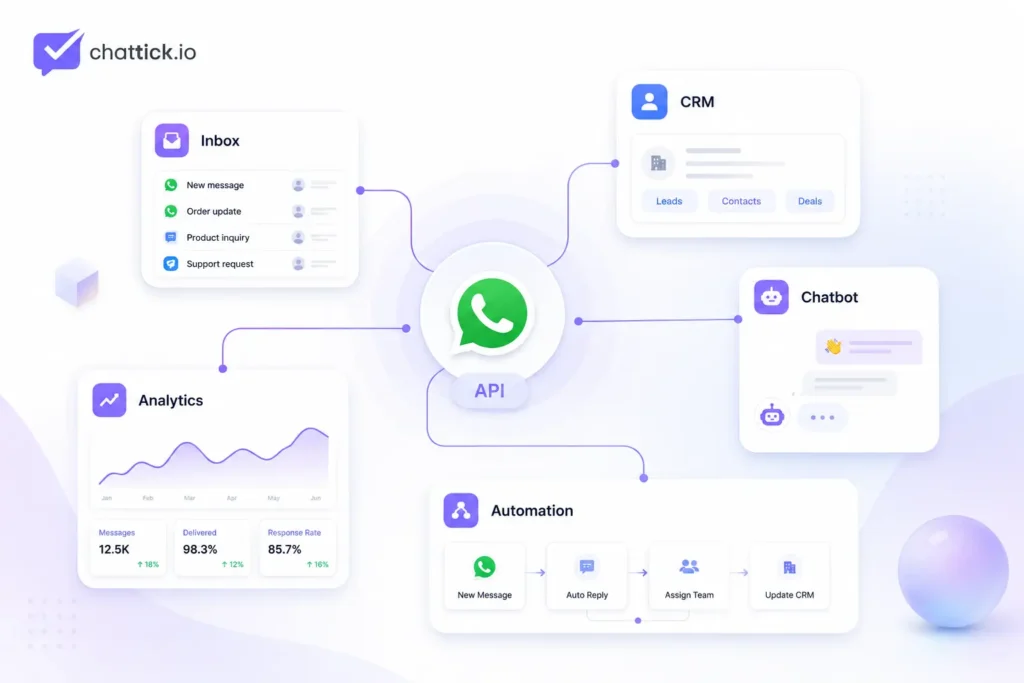
- Shared team inboxes
- CRM platforms
- Business-specific AI chatbots
- Customer-support systems
- Marketing automation tools
- Appointment calendars
- E-commerce platforms
- Custom business applications
Unlike the WhatsApp Business App, the API does not automatically provide a complete agent inbox. Businesses must build their own interface or connect the API with a platform that provides one.
Meta describes Cloud API as its official, hosted WhatsApp Business Platform API for business messaging.
Businesses receiving only a small number of inquiries may be able to use the free WhatsApp Business App. Companies that need automation, multiple agents, integrations, and scalable communication will usually benefit more from the API.
If you are new to the platform, read our complete guide explaining what WhatsApp Business API is before beginning the setup.
What Do You Need to Get WhatsApp Business API?
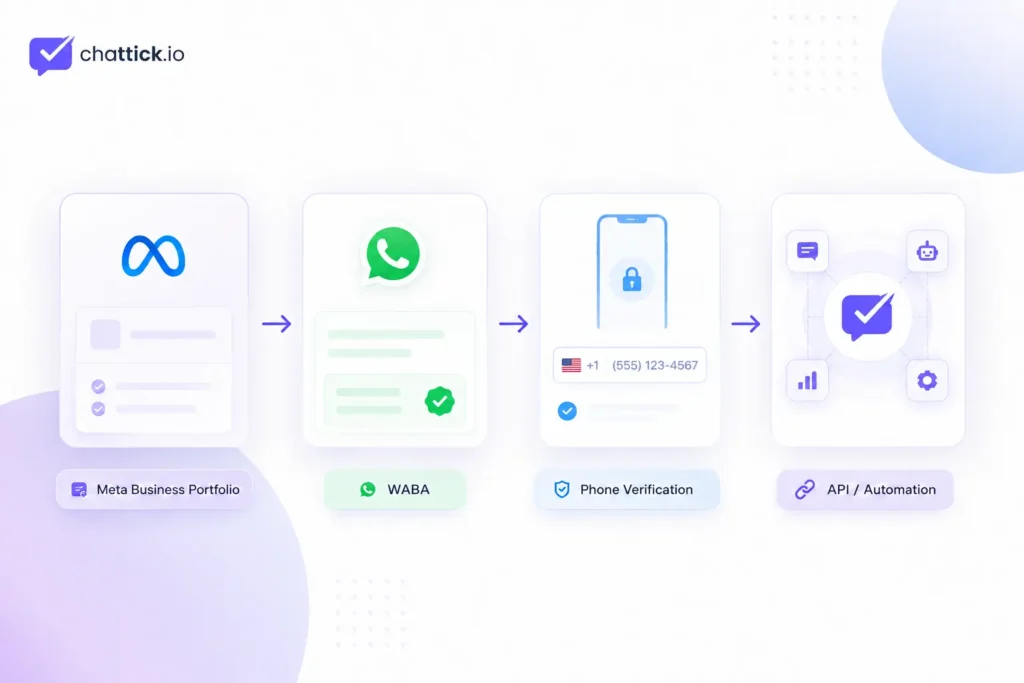
Prepare the following business assets before starting.
1. Meta Business Portfolio
Your Meta business portfolio manages your company’s WhatsApp assets, people, permissions, and business information.
Add accurate information, including:
- Legal or trading business name
- Business address
- Website
- Business email
- Phone number
- Industry
- Company registration details when requested
Keep this information consistent across your Meta account, website, social profiles, and official documents.
Differences in names, addresses, or contact details can make account reviews and business verification more difficult.
Only provide administrative access to trusted team members.
2. WhatsApp Business Account
A WhatsApp Business Account is commonly known as a WABA.
It manages important WhatsApp assets, including:
- Business phone numbers
- Message templates
- Business profile information
- Messaging activity
- Account quality
- User permissions
You can create a new WABA during onboarding or select an eligible existing account.
Whenever possible, keep the WABA inside the company’s own Meta business portfolio rather than an employee’s personal business account. This makes ownership and access easier to manage later.
3. Business Phone Number
You need a phone number controlled by your business.
The number should:
- Be accessible to your team
- Be capable of receiving SMS or voice calls
- Be suitable for long-term business use
- Be recognizable to customers
- Not depend on a temporary employee or contractor
Meta requires phone-number registration and two-step verification. The number is registered through the Cloud API registration process using a six-digit code selected by the business.
Before connecting the number, check whether it is already registered with:
- Personal WhatsApp
- WhatsApp Business App
- Another WhatsApp API provider
- Another WhatsApp Business Account
An existing number may require migration, deregistration, or an eligible coexistence setup.
Do not disconnect an active number until you understand how the change may affect current access and customer conversations.
4. Business Display Name
The display name is the business name customers see when communicating with your company.
It should accurately represent your business and match your:
- Website
- Registered company name
- Storefront branding
- Social media profiles
- Public business presence
Avoid using:
- Promotional slogans
- Excessive capitalization
- Unnecessary symbols
- Misleading claims
- Names unrelated to your company
A clear and consistent business identity can make the review process easier.
5. Website and Professional Email
Your website should clearly demonstrate that the business is genuine and operational.
Ideally, it should include:
- Company name
- Products or services
- Contact details
- Privacy policy
- Terms and conditions
- Business address where applicable
A professional email address connected to your business domain also helps maintain consistency.
Two Ways to Get WhatsApp Business API
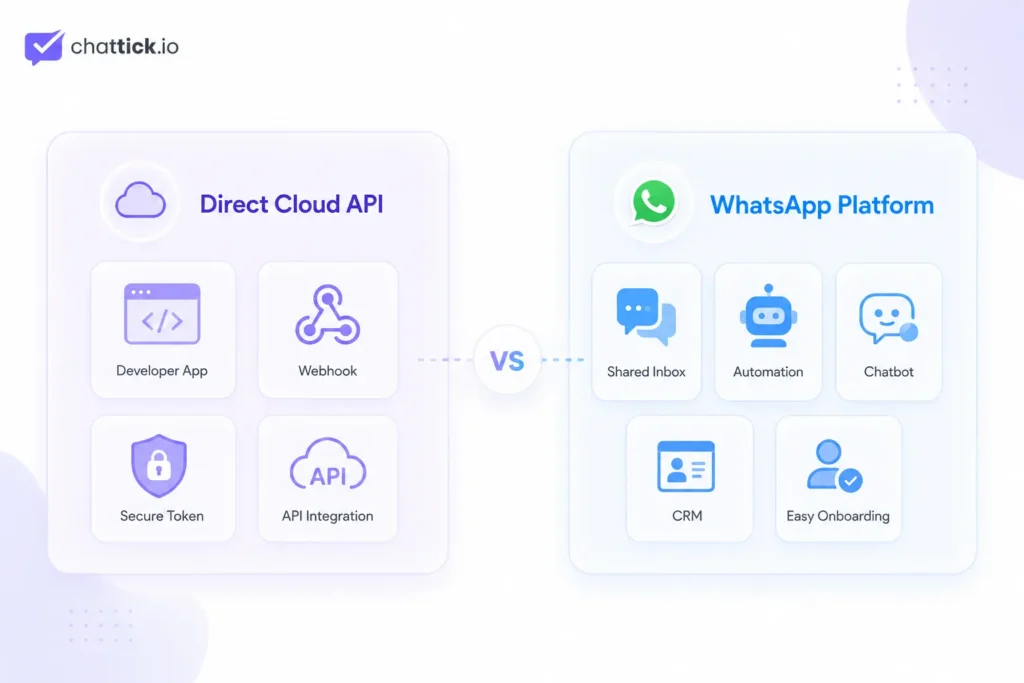
Businesses can access WhatsApp Business API through two main methods. There are two main ways to understand how to get WhatsApp Business API: direct Cloud API integration or guided onboarding through a WhatsApp platform.
Method 1: Set Up Meta Cloud API Directly
Meta Cloud API is hosted by Meta and allows developers to connect WhatsApp directly with business systems. For technical teams researching how to get WhatsApp Business API, Meta Cloud API provides greater control over integrations, webhooks, and messaging workflows.
This method is suitable for businesses that:
- Have developers or a technical team
- Require a custom integration
- Want greater technical control
- Can configure webhooks
- Can manage access tokens securely
- Can build or connect their own inbox
- Can maintain the integration over time
Cloud API provides the messaging infrastructure, but your team may still need to build or connect the interface used by sales and support agents.
Method 2: Use a WhatsApp Platform or Solution Provider
A WhatsApp platform can simplify the setup and provide ready-made tools. Businesses without developers can learn how to get WhatsApp Business API through a platform that simplifies onboarding and provides ready-made tools.
Depending on the platform, these tools may include:
- Guided Meta onboarding
- Shared team inbox
- Multiple-agent access
- Business-specific chatbots
- Automation workflows
- Broadcast campaigns
- CRM integrations
- Analytics
- Template management
- Technical support
Meta provides an Embedded Signup flow that eligible partners and technology providers can use to onboard business customers to WhatsApp Cloud API.
This option is generally easier for businesses that do not want to build and maintain their own technical infrastructure.
Cloud API vs WhatsApp Platform
| Requirement | Direct Cloud API | WhatsApp Platform |
|---|---|---|
| Technical knowledge | High | Low to moderate |
| Setup process | Developer-led | Guided onboarding |
| Shared inbox | Must be built or connected | Usually included |
| Automation | Custom development | Visual workflow tools |
| CRM integration | Developer setup | Often prebuilt |
| Access tokens | Managed internally | Usually handled by platform |
| Webhooks | Configured by developers | Often preconfigured |
| Technical support | Internal technical team | Provider support |
| Best for | Technical teams | Businesses wanting faster setup |
Direct Cloud API provides more customization and technical control. A WhatsApp platform can reduce development work and help a business launch faster.
How to Get WhatsApp Business API Through Cloud API
Follow these steps for a direct Meta Cloud API implementation. Before learning how to get WhatsApp Business API, prepare your Meta account, business information, website, and phone number.
The easiest way to learn how to get WhatsApp Business API without building your own infrastructure is to use a guided WhatsApp platform.
Step 1: Create or Access Your Meta Business Portfolio
Sign in to Meta Business Suite and create a business portfolio if you do not already have one.
Complete and review:
- Business name
- Website
- Business email
- Contact information
- User access
- Security settings
Only give administrative access to trusted people.
Enable two-factor authentication for administrators wherever possible.
Keep the business portfolio under the company’s control rather than relying on a personal or temporary account.
Step 2: Create a Meta Developer App
Create an application through the Meta developer platform.
During setup:
- Select the relevant business use case.
- Connect the application to your Meta business portfolio.
- Add WhatsApp as a product.
- Open the WhatsApp Getting Started section.
- Review the test resources and temporary credentials.
The testing environment allows developers to understand message sending and API requests before connecting a production business number.
For technical implementation details, review the official Meta WhatsApp Cloud API documentation. Meta’s official collection includes common requests, sample responses, and setup resources.
Step 3: Create or Select a WhatsApp Business Account
During onboarding, select an eligible WhatsApp Business Account or create a new one.
The WABA will manage:
- Connected phone numbers
- Templates
- Business profile information
- Account quality
- Messaging activity
- Permissions
Keep a secure record of important technical identifiers, including:
- Business portfolio ID
- WABA ID
- Phone-number ID
- Meta app ID
Your developers may need these values when configuring the integration.
Step 4: Add Your Business Phone Number
Enter the phone number you want to connect.
Before requesting verification:
- Confirm the correct country code
- Check that the number is active
- Ensure it can receive SMS or calls
- Make sure someone can access it
- Check whether it is already connected elsewhere
Using an inaccessible number can interrupt the onboarding process and delay the launch.
Step 5: Verify and Register the Phone Number
Complete the required phone-number verification process and register the number with Cloud API.
Cloud API registration uses the Phone Number ID and requires a six-digit two-step verification code chosen by the business.
Store this code securely.
Do not share it with temporary contractors or unauthorized team members.
Step 6: Submit Your Business Display Name
Enter the name customers should see when communicating with your business.
Use a display name that:
- Matches your business identity
- Appears on your website
- Is easy for customers to recognize
- Avoids promotional wording
- Does not imitate another company
- Uses normal capitalization
Your display name may be reviewed before becoming fully approved.
Step 7: Configure the Required Permissions
Cloud API commonly uses the following permissions:
whatsapp_business_managementwhatsapp_business_messaging
Some business-management or partner onboarding operations may also require additional business permissions depending on the integration.
Meta’s official documentation identifies WhatsApp business-management and messaging permissions as part of the Cloud API setup and testing process.
Only request the permissions your integration genuinely needs.
Step 8: Create Production Access Credentials
The temporary access token used during testing should not be treated as a permanent production credential.
For production, your technical team should:
- Create an appropriate system user
- Assign the necessary WhatsApp assets
- Grant the required permissions
- Generate secure production credentials
- Store credentials safely
- Avoid exposing tokens in frontend code
- Replace credentials when required
Treat API credentials like passwords.
Never paste them into public documents, screenshots, support tickets, or unsecured project files.
Step 9: Configure Webhooks
Webhooks allow your business system to receive real-time events from WhatsApp.
A webhook can notify your application when:
- A customer sends a message
- A message is delivered
- A message is read
- A message fails
- A customer interacts with a button
- A template status changes
Your developer normally needs to:
- Create a secure webhook endpoint.
- Add a verification token.
- Verify the callback URL.
- Subscribe to the required WhatsApp events.
- Process incoming event data.
- Add error handling and logs.
Meta’s Embedded Signup documentation requires providers to configure webhooks and subscribe applications to the connected WhatsApp Business Account.
Without a working webhook, the system may be able to send messages but fail to process customer replies or message-status updates properly.
Step 10: Send a Test Message
Test the integration before launching it publicly.
Check:
- Text messages
- Template messages
- Media messages
- Incoming replies
- Delivery status
- Read status
- Button interactions
- Agent routing
- CRM updates
- Automation triggers
- Failed-message handling
Test each function separately.
This makes it easier to identify whether a problem comes from the phone number, credentials, webhook, CRM, or automation workflow.
Step 11: Create Message Templates
Templates are required for many business-initiated messages.
Common examples include:
- Appointment reminders
- Order confirmations
- Delivery updates
- Payment notifications
- Verification codes
- Promotions
- Lead follow-ups
Templates should be:
- Clear
- Properly categorized
- Relevant to the recipient
- Free from misleading claims
- Easy to understand
- Consistent with the customer’s consent
Always collect appropriate customer opt-in before sending business-initiated WhatsApp messages.
Do not purchase unrelated contact lists or send unsolicited campaigns.
Step 12: Connect Your Business Systems
Once basic messaging works, connect WhatsApp with the systems your team already uses.
Possible integrations include:
- CRM
- Customer-support software
- Appointment calendar
- E-commerce store
- Payment system
- Website forms
- Marketing platform
- Internal database
- Business-specific chatbot
This allows WhatsApp to become part of your complete sales, marketing, and customer-support workflow.
How to Get WhatsApp Business API Through a Platform
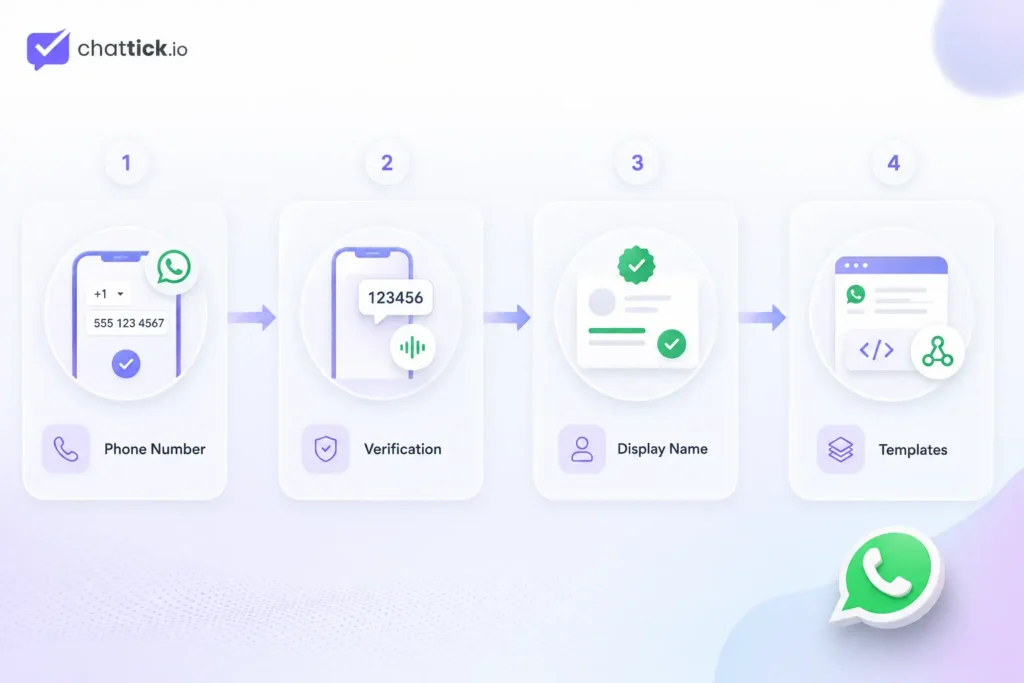
A WhatsApp platform normally removes many of the technical setup steps. Platforms that provide guided onboarding may use Meta’s official Embedded Signup documentation to connect customer business accounts and WhatsApp assets.
A typical onboarding process includes:
- Create your platform account.
- Start the WhatsApp connection process.
- Sign in to Meta.
- Select or create your business portfolio.
- Select or create your WhatsApp Business Account.
- Enter your display name.
- Add your business phone number.
- Verify and register the number.
- Grant the required permissions.
- Complete your business profile.
- Create message templates.
- Configure agents and automation.
- Test incoming and outgoing messages.
Meta’s Embedded Signup is specifically designed to streamline this type of provider-led onboarding.
After onboarding, the platform may provide:
- Shared inbox
- Contact management
- Agent assignment
- Automation builder
- Business chatbot tools
- CRM connections
- Campaign management
- Reporting dashboard
Before selecting a platform, confirm:
- Who owns the WABA
- Who controls the phone number
- Whether you have administrator access
- What happens if you change providers
- Whether Meta messaging charges are marked up
- Which features cost extra
- Whether migration support is included
Your business should retain appropriate ownership and access to its Meta and WhatsApp assets.
Do You Need Meta Business Verification?
Some businesses may be able to begin testing or limited setup before completing every verification stage.
However, Meta may request business verification as the account, access, integration, or messaging activity expands.
Prepare documents such as:
- Certificate of incorporation
- Business registration
- Tax document
- Business bank statement
- Utility bill
- Official address document
- Domain-based email
The information on your documents should match the details in your Meta business portfolio.
Do not edit, manipulate, or create false business documents.
Incorrect information can lead to delays or account restrictions.
How Long Does WhatsApp API Setup Take?
There is no guaranteed setup time.
The process depends on:
- Whether your Meta business portfolio already exists
- Whether the phone number is available
- Access to verification methods
- Display-name review
- Business-information consistency
- Platform onboarding
- Technical integration complexity
- Template approval
- CRM and automation requirements
A provider-led setup may be faster than building a complete Cloud API system from scratch.
However, incorrect details, inaccessible phone numbers, or inconsistent business documents can cause delays.
Prepare the required assets before starting instead of fixing ownership and verification issues halfway through the process.
How Much Does WhatsApp Business API Cost?
Getting access to the API and operating a complete WhatsApp system are not the same thing. Current rates by market, currency, and message category are available on the official WhatsApp Business Platform pricing page.
Your total cost may include:
- Meta message charges
- Platform subscription
- Agent seats
- Shared inbox
- Automation usage
- CRM integration
- Development
- Hosting
- Maintenance
- Setup support
The final cost depends on the message categories you use, recipient markets, monthly volume, provider, and required tools.
Read our complete WhatsApp Business API pricing guide before choosing a setup method or platform. Knowing how to get WhatsApp Business API is only the first step; businesses must also configure verification, permissions, webhooks, and templates correctly.
Common WhatsApp Business API Setup Problems
Phone Number Does Not Receive the Verification Code
Check:
- Country code
- Mobile signal
- Voice-call support
- Call-blocking settings
- Access to the number
- Existing WhatsApp registration
- Recent verification attempts
Avoid requesting codes repeatedly within a short period.
Confirm that the number is entered correctly before trying again.
Display Name Is Rejected
Possible reasons include:
- The name does not match the business
- The website uses a different name
- Excessive capitalization
- Promotional wording
- Trademark concerns
- Incomplete online presence
Use a simple and verifiable business name.
Your website, social profiles, and official documents should support the connection between the display name and your company.
Existing Phone Number Is Already in Use
The number may already be connected to:
- WhatsApp Messenger
- WhatsApp Business App
- Another API provider
- Another WABA
The correct process depends on whether you are:
- Migrating the number
- Removing an existing registration
- Moving between providers
- Using an eligible coexistence option
Do not disconnect the current setup until you understand how the change may affect access, chat history, and customer communication.
Access Token Stops Working
Common causes include:
- A temporary token expired
- A required permission is missing
- Assets were not assigned correctly
- The token was revoked
- Business access changed
- The wrong token was used
- The Meta app configuration changed
Use secure production credentials instead of depending on a temporary test token.
Messages Are Not Being Received
Check:
- Webhook URL
- Verification token
- Event subscriptions
- SSL certificate
- Server response
- Phone-number ID
- App configuration
- Error logs
Test every stage separately.
For example, confirm that Meta sends the webhook before checking whether your CRM processes it.
Message Templates Are Rejected
Templates may be rejected when they:
- Use unclear wording
- Have the wrong category
- Contain misleading claims
- Include unnecessary promotional language
- Do not match the intended use
- Use variables without enough context
Write templates as complete and understandable customer messages.
Make it clear why the customer is receiving the message.
Should You Choose Cloud API or a Platform?
Choose direct Cloud API when:
- You have developers
- You need a custom system
- You want greater technical control
- Your team can maintain tokens and webhooks
- You have unique integration requirements
- You can build or connect an agent interface
Choose a WhatsApp platform when:
- You want faster onboarding
- You need a ready-made shared inbox
- You want visual automation
- You need multiple agents
- You prefer technical support
- You do not want to maintain API infrastructure
- You want prebuilt CRM connections
Neither option is automatically better for every business.
A small technical team may prefer Cloud API for flexibility, while a sales or customer-support team may prefer a platform that can be used immediately.
When Should You Move from WhatsApp Business App to API?
Consider upgrading when:
- Customer messages are becoming difficult to manage manually
- Multiple employees need access
- Leads are being missed because replies are slow
- You need CRM integration
- You want automated appointment or order updates
- You require structured agent assignments
- You need campaign and performance reporting
- You want business-specific chatbot automation
The WhatsApp Business App remains useful for smaller businesses. The API becomes more valuable when communication requires automation, integration, and team collaboration.
Read our WhatsApp Business App vs WhatsApp Business API comparison to understand which option better matches your business.
Frequently Asked Questions
How do I get WhatsApp Business API?
Create or select a Meta business portfolio, WhatsApp Business Account, and business phone number. You can then connect through Meta Cloud API directly or use a platform with guided onboarding.
Is WhatsApp Business API free?
Operating a complete WhatsApp API solution may involve Meta message charges, software subscriptions, agent seats, automation, integrations, development, and maintenance costs.
What is the easiest way to get WhatsApp Business API?
The easiest way to get WhatsApp Business API is through a platform that offers Meta Embedded Signup, phone-number verification, a shared inbox, automation, and technical support.
Do I need a developer?
You will usually need a developer for a direct Cloud API implementation.
A ready-made WhatsApp platform may allow you to complete the onboarding without building the technical infrastructure yourself.
Can I use my existing WhatsApp number?
It may be possible through migration or an eligible coexistence setup. The correct process depends on how the number is currently registered.
Review the process carefully before disconnecting your current WhatsApp account.
Can multiple agents use one WhatsApp number?
Yes. When WhatsApp Business API is connected to a shared inbox or customer-support platform, multiple authorized agents can manage conversations through the same business number.
Does WhatsApp Business API support chatbots?
Yes. Businesses can connect task-specific chatbots and automation for use cases such as answering FAQs, qualifying leads, booking appointments, providing updates, and transferring conversations to live agents.
Can I test WhatsApp API before launching?
Yes. Meta provides testing resources and temporary credentials that developers can use before connecting a production phone number.
What permissions are required?
Cloud API commonly uses whatsapp_business_management and whatsapp_business_messaging. Some onboarding or partner integrations may require additional business permissions.
Do I need a Facebook Page?
The core technical setup focuses on the Meta business portfolio, WhatsApp Business Account, Meta app, and business phone number. A complete and consistent Facebook Page can still strengthen your company’s public business presence.
How long does approval take?
There is no fixed approval time. It depends on the account, phone number, display name, business information, documents, provider, and technical setup.
Conclusion
Learning how to get WhatsApp Business API starts with choosing the right implementation method. Knowing how to get WhatsApp Business API allows your business to choose between a direct technical integration and a managed platform setup.
Direct Cloud API gives technical teams greater flexibility and control. A WhatsApp platform provides a faster and more manageable route for businesses that need a shared inbox, automation, CRM integrations, and ongoing support.
Before starting, prepare your:
- Meta business portfolio
- WhatsApp Business Account
- Business phone number
- Display name
- Website
- Business details
- Technical or platform requirements
Planning the setup correctly can prevent verification delays, ownership confusion, lost access, and unnecessary migration work later.
Get WhatsApp Business API with Chattick
Chattick helps businesses connect WhatsApp and manage customer communication through one unified platform.
With Chattick, your team can:
- Connect WhatsApp Business API
- Manage conversations through a shared inbox
- Add multiple sales and support agents
- Build automated customer journeys
- Use business-specific AI chatbots
- Connect CRM and business tools
- Send approved campaigns and notifications
- Track customer and team performance
Book a demo with Chattick to plan your WhatsApp Business API setup based on your team size, customer volume, and automation requirements.