
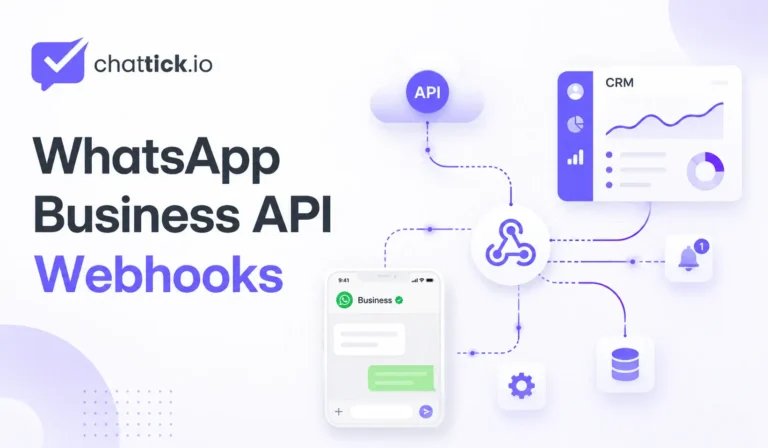
WhatsApp Business API webhooks allow your application to receive real-time notifications when customers send messages, outgoing messages are delivered or read, interactive buttons are selected, or supported WhatsApp account events occur.
Instead of repeatedly checking the API for new activity, your application receives an HTTPS request whenever a subscribed event happens.
A properly configured webhook can help your business:
- Receive incoming customer messages
- Track sent, delivered, read, and failed messages
- Detect quick-reply and interactive-button actions
- Start CRM and automation workflows
- Assign conversations to agents
- Update customer and order records
- Trigger appointment or support processes
- Monitor messaging errors
- Store conversation events
- Build real-time reporting
This guide explains how WhatsApp Business API webhooks work, what you need before setup, how callback verification works, how to subscribe your app to a WhatsApp Business Account, how webhook payloads are structured, which message events you can receive, and how to troubleshoot common webhook problems in 2026.
Quick Answer: What Are WhatsApp Business API Webhooks?
WhatsApp Business API webhooks are HTTPS callbacks that send event information from the WhatsApp Business Platform to your connected application.
When a supported event occurs, Meta sends a request containing a JSON payload to your webhook URL.
For example:
Customer Sends a WhatsApp Message
→ Meta Receives the Message
→ Webhook Event Is Generated
→ JSON Payload Is Sent to Your Server
→ Your Application Processes the Event
→ CRM, Chatbot, or Shared Inbox Is Updated
Webhooks are essential for a complete two-way WhatsApp integration because they allow your system to receive incoming messages and message-status updates in real time.
The WhatsApp Business Platform can be used to send and receive messages programmatically through connected applications and backend systems.
Why Are WhatsApp Business API Webhooks Important?
Sending messages through the API is only one part of a WhatsApp integration.
Your system also needs to know when:
- A customer replies
- A message reaches WhatsApp
- A message is delivered to the customer
- A customer reads the message
- A message fails
- A customer clicks a button
- A customer sends an image or document
- An automation needs to start
- A human agent should take over
Without webhooks, your CRM, chatbot, shared inbox, and automation workflows would not receive these real-time WhatsApp events.
WhatsApp message IDs can be matched with webhook status events, allowing businesses to track the status of messages previously sent through the messages endpoint.
How Do WhatsApp Business API Webhooks Work?
A standard webhook process contains two main stages:
- Callback URL verification
- Event notification delivery
Callback URL Verification
Before sending production events, Meta verifies that your webhook endpoint exists and that you control it.
During verification, your server receives a request containing verification parameters.
Your application should:
- Read the verification mode.
- Compare the received verification token with the token stored securely on your server.
- Return the provided challenge value when the token matches.
- Reject the request when the token does not match.
Your verification token is a secret value you create.
It is not the same as your WhatsApp API access token.
Event Notification Delivery
After verification and subscription, Meta can send POST requests to your webhook endpoint whenever relevant events occur.
Your application should:
- Receive the JSON payload.
- Confirm that it belongs to the expected WhatsApp object.
- Read the WABA and phone-number information.
- Identify whether the payload contains messages or statuses.
- Process the event.
- Return a successful HTTP response quickly.
- Complete slower automation tasks separately.
A webhook should acknowledge the request quickly instead of waiting for a long CRM, AI, or database process to finish.
WhatsApp Webhook Setup Requirements
Before configuring WhatsApp Business API webhooks, prepare the following:
- Meta business portfolio
- WhatsApp Business Account
- Registered business phone number
- Meta developer application
- WhatsApp product added to the app
- Publicly accessible webhook URL
- HTTPS support
- Valid SSL certificate
- Verification token
- WABA ID
- Suitable access token
- Required permissions
- Backend application or webhook server
The webhook server must be reachable from Meta, support HTTPS, and use a valid SSL certificate.
Recommended Technical Preparation
Your production system should also include:
- Environment variables
- Secure token storage
- Request logging
- Error monitoring
- Duplicate-event protection
- Database access
- Background processing
- Retry handling
- CRM or inbox integration
- Development and production environments
Do not expose verification tokens or access tokens inside browser-side JavaScript.
How to Configure WhatsApp Business API Webhooks
Step 1: Create Your Webhook Endpoint
Create two routes on your backend:
GET /webhook
POST /webhook
The GET route handles verification.
The POST route receives actual webhook events.
Example endpoint:
https://api.yourbusiness.com/webhookThe URL should be publicly accessible and protected with HTTPS.
Example Verification Logic
app.get("/webhook", (req, res) => {
  const mode = req.query["hub.mode"];
  const token = req.query["hub.verify_token"];
  const challenge = req.query["hub.challenge"];

  if (
    mode === "subscribe" &&
    token === process.env.WEBHOOK_VERIFY_TOKEN
  ) {
    return res.status(200).send(challenge);
  }

  return res.sendStatus(403);
});
Store WEBHOOK_VERIFY_TOKEN securely in your server environment.
Do not publish the real verification token in tutorials, screenshots, repositories, or frontend code.
Step 2: Add the Webhooks Product
Open your Meta developer application and configure the Webhooks product.
Select the WhatsApp Business Account object and provide:
- Callback URL
- Verification token
The Webhooks product must be configured before the app can receive WhatsApp Business Account events.
Step 3: Complete Webhook Verification
When you submit your callback URL and token, Meta sends a verification request.
Your GET endpoint should return the challenge exactly as received when the token is valid.
Common reasons verification fails include:
- Callback URL is inaccessible
- HTTPS is missing
- SSL certificate is invalid
- Verification token does not match
- Server returns JSON instead of the raw challenge
- Endpoint returns a redirect
- Firewall blocks the request
- Application throws an error
- Wrong route is configured
Test the endpoint before adding it to Meta.
Step 4: Subscribe to the Messages Field
After verifying the webhook, subscribe to the relevant WhatsApp fields.
For customer messaging, the primary field is normally:
messagesThis field can deliver incoming messages and outgoing message-status events.
Additional account-management fields may be available for events such as template or phone-number updates, depending on your application and permissions.
Step 5: Subscribe Your App to the WABA
Configuring the webhook URL alone is not enough.
Your app must also be subscribed to the specific WhatsApp Business Account whose events you want to receive.
You normally need to subscribe once per WABA. Events for phone numbers belonging to that account can then be delivered through the configured webhook.
The subscription endpoint follows this structure:
POST /{WABA-ID}/subscribed_appsA successful response may look like this:
{
  "success": true
}
Required Subscription Information
You normally need:
- Graph API version
- WABA ID
- Suitable access token
- Required business-management permission
The exact token and asset setup depends on how your business or platform manages WhatsApp accounts.
Step 6: Send a Test Message
Send a test message from a personal WhatsApp account to the registered business number.
Your webhook should receive an incoming message payload.
Then send a reply through the API and confirm that status payloads arrive for the outgoing message.
Test at least:
- Incoming text message
- Outgoing text message
- Delivered status
- Read status
- Failed message
- Quick-reply button
- Image or document
- Agent reply
- Automation trigger
Understanding the WhatsApp Webhook Payload Structure
WhatsApp Business API webhooks use a structured JSON format.
A general payload may look like this:
{
  "object": "whatsapp_business_account",
  "entry": [
    {
      "id": "WHATSAPP_BUSINESS_ACCOUNT_ID",
      "changes": [
        {
          "value": {
            "messaging_product": "whatsapp",
            "metadata": {
              "display_phone_number": "BUSINESS_PHONE_NUMBER",
              "phone_number_id": "PHONE_NUMBER_ID"
            }
          },
          "field": "messages"
        }
      ]
    }
  ]
}
The main levels normally include:
objectentrychangesvaluemetadatafield
Object
The top-level object identifies the subscribed resource.
For WhatsApp messaging events, it is commonly:
whatsapp_business_accountEntry
The entry array contains information about the WhatsApp Business Account related to the event.
It may include:
- WABA ID
- Event time
- Changes array
Changes
The changes array contains one or more event changes.
Each change normally includes:
fieldvalue
For messaging notifications, the field is commonly:
messagesValue
The value object contains the event-specific information.
It may include:
- Messaging product
- Phone-number metadata
- Contact information
- Incoming messages
- Message statuses
- Errors
Metadata
The metadata object may identify:
- Display phone number
- Phone Number ID
Use the Phone Number ID to determine which connected business number received the event.
Incoming WhatsApp Message Events
When a customer sends a message, the payload can include a messages array.
Example:
{
  "messages": [
    {
      "from": "CUSTOMER_PHONE_NUMBER",
      "id": "WHATSAPP_MESSAGE_ID",
      "timestamp": "TIMESTAMP",
      "type": "text",
      "text": {
        "body": "Hello, I need help."
      }
    }
  ]
}
The message object can include fields such as the customer number, unique message ID, timestamp, message type, and type-specific content.
Important Incoming Message Fields
from
id
timestamp
type
text
image
document
audio
video
interactive
button
location
contacts
context
Your application should not assume that every incoming message is text.
Always check the type field before reading the message content.
Supported Incoming Message Types
WhatsApp webhook payloads can represent multiple types of customer messages.
These can include:
- Text
- Image
- Video
- Audio
- Voice message
- Document
- Sticker
- Location
- Contact
- Interactive response
- Quick-reply button
- Order
- System message
- Unknown or unsupported content
Text Message
{
  "type": "text",
  "text": {
    "body": "I want to book a consultation."
  }
}
Image Message
{
  "type": "image",
  "image": {
    "id": "MEDIA_ID",
    "mime_type": "image/jpeg"
  }
}
Your application can use the media ID to retrieve the media through the appropriate API process.
Document Message
{
  "type": "document",
  "document": {
    "id": "MEDIA_ID",
    "filename": "application.pdf",
    "mime_type": "application/pdf"
  }
}
Location Message
{
  "type": "location",
  "location": {
    "latitude": 0,
    "longitude": 0
  }
}
Interactive Reply
Interactive responses can contain the ID and title of the option selected by the customer.
Use stable internal IDs for workflow logic instead of relying only on the button’s visible title.
WhatsApp Message Status Events
When your business sends a message, WhatsApp Business API webhooks can report changes in the message status.
The most important statuses include:
- Sent
- Delivered
- Read
- Failed
Sent
A sent status indicates that the message was accepted by the WhatsApp server.
It does not necessarily mean the message has reached the customer’s device.
Delivered
A delivered status indicates that the message reached the recipient.
Read
A read status indicates that the message was read by the recipient when read-status information is available.
Failed
A failed status indicates that delivery was unsuccessful.
The status payload may include error details that help identify the reason.
Example Status Payload
{
  "statuses": [
    {
      "id": "WHATSAPP_MESSAGE_ID",
      "status": "delivered",
      "timestamp": "TIMESTAMP",
      "recipient_id": "CUSTOMER_PHONE_NUMBER"
    }
  ]
}
Each outgoing message receives a unique ID that can be used to track the message through webhook status events.
How to Store Message Statuses Correctly
Create a message record when sending an outbound message.
Store:
- WhatsApp message ID
- Customer phone number
- Contact ID
- Template name
- Message category
- Sent time
- Current status
- Delivered time
- Read time
- Failure reason
- CRM conversation ID
When a status webhook arrives:
- Find the message using its WhatsApp message ID.
- Compare the new status with the stored status.
- Update the relevant timestamp.
- Record error details when the message fails.
- Trigger any necessary workflow.
Do not create a new message record every time a status changes.
Quick-Reply and Interactive Button Events
WhatsApp Business API webhooks can notify your application when a customer selects an interactive option or clicks a supported quick-reply button.
For example:
Appointment Reminder Sent
→ Customer Clicks “Confirm”
→ Webhook Receives Button ID
→ Appointment Is Marked Confirmed
→ CRM Is Updated
→ Team Is Notified
Possible button actions include:
- Confirm appointment
- Reschedule
- Track order
- Talk to support
- Select service
- Accept offer
- Stop promotions
Use Button IDs for Automation
Visible button title:
Confirm AppointmentInternal button ID:
confirm_appointmentWorkflow logic should normally use the internal ID.
This prevents the automation from breaking if the visible button label changes.
Processing Webhook Events Safely
A basic webhook handler may look like this:
app.post("/webhook", async (req, res) => {
  res.sendStatus(200);

  try {
    const payload = req.body;

    if (payload.object !== "whatsapp_business_account") {
      return;
    }

    for (const entry of payload.entry || []) {
      for (const change of entry.changes || []) {
        const value = change.value || {};

        if (Array.isArray(value.messages)) {
          for (const message of value.messages) {
            await processIncomingMessage(
              message,
              value.metadata
            );
          }
        }

        if (Array.isArray(value.statuses)) {
          for (const status of value.statuses) {
            await processMessageStatus(status);
          }
        }
      }
    }
  } catch (error) {
    console.error("Webhook processing error:", error);
  }
});
This example immediately acknowledges the webhook before processing slower tasks.
For a production system, move complex tasks to a queue or background worker.
Duplicate Webhook Event Handling
Your application should assume that the same event may be delivered more than once.
Without duplicate protection, your system may:
- Send the same reply twice
- Create duplicate CRM contacts
- Create multiple opportunities
- Book duplicate appointments
- Update an order repeatedly
- Send repeated internal notifications
Idempotency Process
Store a unique event identifier, such as the message ID and event type.
Before processing:
Receive Webhook
→ Check Event ID
→ Already Processed?
→ Yes: Ignore Event
→ No: Store ID and Continue
Possible unique keys include:
wamid.MESSAGE_ID:incoming
wamid.MESSAGE_ID:delivered
wamid.MESSAGE_ID:read
Do not use only the customer’s phone number as the duplicate key because one customer can send several different messages.
WhatsApp Business API Webhook Security
A production webhook endpoint should include several security controls.
Use HTTPS
The callback endpoint must use HTTPS with a valid SSL certificate.
Protect Verification Tokens
Store the verification token in an environment variable.
Do not expose it in frontend code or public repositories.
Restrict Access to Logs
Webhook payloads can contain customer phone numbers, messages, contact details, and business information.
Only authorized team members should access full payload logs.
Avoid Logging Sensitive Content
Do not permanently store full message bodies unless the business genuinely needs them.
Consider masking:
- Phone numbers
- Email addresses
- Identification data
- Authentication codes
- Financial information
Use Secure Access Tokens
Webhook verification tokens and WhatsApp access tokens serve different purposes.
Do not confuse them or expose either publicly.
Validate Payload Structure
Before processing, confirm that:
- The object is expected
- Entry exists
- Changes exists
- Field is recognized
- Phone Number ID is connected
- Message or status arrays are valid
Reject or ignore malformed data safely.
WhatsApp Webhook Use Cases for CRM and Automation
Lead Capture
Customer Sends WhatsApp Message
→ Webhook Receives Contact Information
→ CRM Searches Existing Contact
→ New Contact Is Created if Required
→ Lead Source Is Added
→ Sales Opportunity Is Created
→ Agent Is Assigned
Chatbot Automation
Incoming Message
→ Detect Message Type
→ Identify Customer Intent
→ Search Customer Data
→ Generate Approved Response
→ Send Reply
→ Transfer to Agent if Needed
Appointment Booking
Customer Clicks “Book Appointment”
→ Interactive Webhook Is Received
→ Booking Options Are Loaded
→ Customer Selects Time
→ Calendar Event Is Created
→ Confirmation Template Is Sent
Order Tracking
Customer Sends Order Number
→ Webhook Starts Order Lookup
→ Database Returns Order Status
→ WhatsApp Response Is Sent
→ CRM Activity Is Updated
Support Ticket Creation
Customer Requests Support
→ Webhook Creates Help Desk Ticket
→ Priority Is Assigned
→ Support Agent Is Notified
→ Customer Receives Confirmation
Marketing Opt-Out
Customer Sends “STOP”
→ Webhook Detects Opt-Out Intent
→ CRM Consent Status Is Updated
→ Marketing Workflows Are Stopped
→ Confirmation Is Sent
Multiple WABAs and Callback URLs
Platforms managing multiple WhatsApp Business Accounts may need different callback URLs for different clients or environments.
This can be useful when:
- Each client uses a separate server
- Regional data must be separated
- Development and production environments differ
- Different products process different WABAs
- Enterprise customers require isolated infrastructure
Avoid creating unnecessary complexity when one secure callback URL can route events using the WABA ID or Phone Number ID.
Common WhatsApp Webhook Errors
Webhook URL Could Not Be Verified
Possible causes:
- Incorrect verification token
- Callback URL is not public
- HTTPS is missing
- SSL certificate is invalid
- GET endpoint is missing
- Challenge is not returned correctly
- Server returns a redirect
- Firewall blocks the request
Fix
Test the exact production URL.
Confirm that the route reads:
hub.mode
hub.verify_token
hub.challenge
Webhook Is Verified but No Events Arrive
Possible causes:
- App is not subscribed to the WABA
- Wrong WABA was subscribed
- Messages field is not selected
- Test message was sent to a different phone number
- Callback URL belongs to another environment
- App or token lacks the required access
- Server is failing silently
Fix
Check the app’s WABA subscription through the subscribed_apps endpoint.
Webhook URL verification and WABA subscription are separate steps.
Incoming Messages Arrive but Status Events Do Not
Possible causes:
- Outgoing message ID is not stored
- Payload parser only checks
messages - Statuses array is being ignored
- Wrong message record is updated
- Status processing throws an error
Fix
Process both:
value.messages
value.statuses
Store the message ID returned by every outbound API request.
Webhook Returns HTTP 500
Possible causes:
- Missing JSON body parser
- Unexpected payload type
- Database error
- Null value access
- Long-running external API call
- Invalid environment variable
- Unhandled exception
Fix
Return a successful response quickly and process the event separately.
Add safe checks when reading nested payload fields.
Duplicate CRM Records Are Created
Possible causes:
- Duplicate webhook delivery
- Contact search runs after contact creation
- No message-ID deduplication
- Phone-number normalization is inconsistent
Fix
Normalize phone numbers and use unique event IDs before processing.
Images or Documents Are Missing
The incoming payload may contain a media ID rather than the complete file.
Your application must retrieve supported media using the appropriate media process and secure access credentials.
Do not assume that the full document is contained directly in the webhook payload.
Button Workflow Does Not Start
Possible causes:
- Logic checks button title instead of button ID
- Interactive and button payloads are confused
- Template button ID differs from workflow condition
- Payload path is incorrect
Fix
Log one real test payload and map the exact internal button or interactive-reply ID.
Failed Messages Are Not Visible to Agents
Possible causes:
- Failed status is not processed
- Error details are not stored
- Shared inbox does not display failures
- No alert workflow exists
Fix
Create an alert for failed status events and show the failure reason where available.
Testing WhatsApp Business API Webhooks
Use a structured testing process before launch.
Verification Tests
- Correct verification token
- Incorrect verification token
- Missing challenge
- HTTPS certificate
- Public accessibility
Incoming Message Tests
- Text
- Image
- Document
- Audio
- Location
- Contact
- Button
- Interactive reply
- Unknown type
Status Tests
- Sent
- Delivered
- Read
- Failed
Workflow Tests
- New customer
- Existing customer
- Duplicate event
- Missing CRM contact
- CRM unavailable
- Agent unavailable
- Customer opt-out
- Unsupported message type
Load Tests
Check how the system behaves when:
- Several customers message simultaneously
- Many delivery statuses arrive together
- CRM response is slow
- Database temporarily fails
- Queue processing is delayed
Webhook Monitoring Checklist
Monitor:
- Total webhook requests
- Verification failures
- HTTP response codes
- Average response time
- Incoming message count
- Status event count
- Duplicate event count
- Processing failures
- CRM synchronization errors
- Queue delays
- Failed messages
- Unknown message types
Create alerts for:
- Repeated HTTP 500 responses
- No events received for an unusual period
- Access or subscription failure
- High failed-message rate
- Database connection failure
- Background queue backlog
WhatsApp Business API Webhook Best Practices
Respond Quickly
Acknowledge the webhook before starting slow automation or AI tasks.
Separate Verification and Event Logic
Use GET for callback verification and POST for webhook events.
Store Message IDs
Store every incoming and outgoing WhatsApp message ID.
Support Multiple Message Types
Do not design the integration for text messages only.
Make Processing Idempotent
Prevent repeated webhook delivery from creating repeated business actions.
Keep Logs Useful but Secure
Log event IDs and error details without unnecessarily retaining sensitive customer content.
Use Phone Number ID for Routing
A single webhook may receive events for several phone numbers under a subscribed WABA.
Maintain a Fallback Process
When CRM, chatbot, or automation processing fails, route the conversation to a human agent or retry safely.
Test with Real Payloads
Example payloads are useful, but real test messages help reveal exact field paths and message types.
Frequently Asked Questions
What Are WhatsApp Business API Webhooks?
They are HTTPS callbacks that send real-time WhatsApp message, status, and supported account events to a connected application.
Are Webhooks Required for WhatsApp Cloud API?
Webhooks are required for a complete real-time integration that receives incoming messages and outgoing message-status updates.
What URL Should I Use for a WhatsApp Webhook?
Use a publicly accessible HTTPS endpoint with a valid SSL certificate.
Example:
https://api.yourbusiness.com/webhookWhat Is a Webhook Verification Token?
It is a secret value created by the developer and used to confirm control of the callback endpoint.
It is different from the WhatsApp API access token.
Why Is My Webhook Verified but Not Receiving Messages?
The most common reason is that the app has not been subscribed to the correct WABA.
Webhook URL verification and WABA subscription are separate steps.
Do I Subscribe Each Phone Number Separately?
No. One WABA subscription can normally cover events for phone numbers belonging to that WhatsApp Business Account.
What Permission Is Needed to Subscribe to a WABA?
The required permission normally includes:
whatsapp_business_managementThe exact requirements depend on the integration and asset configuration.
Can One Webhook Receive Events for Multiple Numbers?
Yes.
Use the WABA ID and Phone Number ID in the payload to route events to the correct business, account, team, or workflow.
Can I Use Different Callback URLs for Different WABAs?
Different callback strategies may be used depending on the platform architecture and account configuration.
A verified central webhook can also route events by WABA ID or Phone Number ID.
How Do I Know Whether a Message Was Read?
Process the status payload and look for the read status associated with the outgoing WhatsApp message ID.
Why Am I Receiving the Same Event Twice?
Webhook delivery systems may repeat events.
Your application should store unique message and event identifiers and process each business action only once.
Can Webhooks Trigger CRM Automation?
Yes.
A webhook can trigger:
- Contact creation
- Lead assignment
- Pipeline updates
- Appointment workflows
- Chatbot responses
- Order lookups
- Support-ticket creation
- Internal notifications
Conclusion
WhatsApp Business API webhooks are the real-time connection between WhatsApp and your business systems.
They allow your integration to receive:
- Customer messages
- Media messages
- Interactive responses
- Quick-reply actions
- Sent statuses
- Delivered statuses
- Read statuses
- Failed-message events
- Supported account notifications
A reliable webhook implementation requires more than adding a callback URL.
Your business must correctly manage:
- HTTPS and SSL
- Callback verification
- WABA subscription
- Access permissions
- Payload parsing
- Message IDs
- Duplicate events
- CRM updates
- Error handling
- Secure logging
- Performance monitoring
- Human-agent fallback
When these parts are implemented correctly, WhatsApp Business API webhooks can power real-time chatbots, shared inboxes, CRM integrations, appointment systems, e-commerce workflows, customer support, and business automation.
Connect WhatsApp Webhooks with Chattick
Chattick helps businesses connect WhatsApp webhook events with customer conversations, shared inboxes, CRM systems, chatbots, and automated workflows.
With Chattick, your business can:
- Receive WhatsApp messages in real time
- Track sent, delivered, read, and failed statuses
- Route conversations to team members
- Create or update CRM contacts
- Trigger chatbot workflows
- Automate appointment and order updates
- Manage multiple agents
- Monitor customer conversations
- Provide human support when automation is not enough
Book a free Chattick demo to build a WhatsApp webhook integration around your CRM, team inbox, customer journey, and automation requirements.